
Please enter a search keyword
Welcome to the Help Page
This guide explains how to use the sleep app BRAIN SLEEP COIN.
We provide detailed information, from basic app usage to the specifications and usage of the dedicated "BRAIN SLEEP COIN" device.
How to Login
About account registration and login
Home Screen
How to use the home screen
Sleep Tracking
How to start tracking and settings
Checking Tracking Results
How to view sleep data
AI Consultation
About AI sleep consultation
Utilizing Sleep Coins
How to earn and use coins
My Karte
How to use My Karte
Articles
About sleep-related articles
Device
How to use Sleep Coin
FAQ
Troubleshooting and FAQs
About Login Method

Tap for first-time users
If you have an account, are already registered, or have a Sleep Deviation account, please log in from "Existing Users."
*It is possible to use the app without registering, but there will be restrictions such as not being able to earn Sleep Coins.
*If you have any questions about registration, you can contact the chatbot from the help icon in the bottom right corner.
If you have an account, are already registered, or have a Sleep Deviation account, please log in from "Existing Users."
*It is possible to use the app without registering, but there will be restrictions such as not being able to earn Sleep Coins.
*If you have any questions about registration, you can contact the chatbot from the help icon in the bottom right corner.

Register with your preferred SNS or tool
Link from LINE or other services to register your account. You can also register with your email address.
Link from LINE or other services to register your account. You can also register with your email address.

If you have a Sleep Deviation account, please log in here.
About the Home Screen

① Your rank for this month is displayed.
② Tap to check today's earned coins.
*Coins will not be accumulated if you have not registered an account.
③ Information on next month's rank and progress to rank up is displayed.
④ You can check the details.
⑤ Your score from today's tracking results and the national average sleep score are displayed.
⑥ Your weekly score and average score are displayed.
⑦ Sleep advice is displayed based on your sleep results.
② Tap to check today's earned coins.
*Coins will not be accumulated if you have not registered an account.
③ Information on next month's rank and progress to rank up is displayed.
④ You can check the details.
⑤ Your score from today's tracking results and the national average sleep score are displayed.
⑥ Your weekly score and average score are displayed.
⑦ Sleep advice is displayed based on your sleep results.
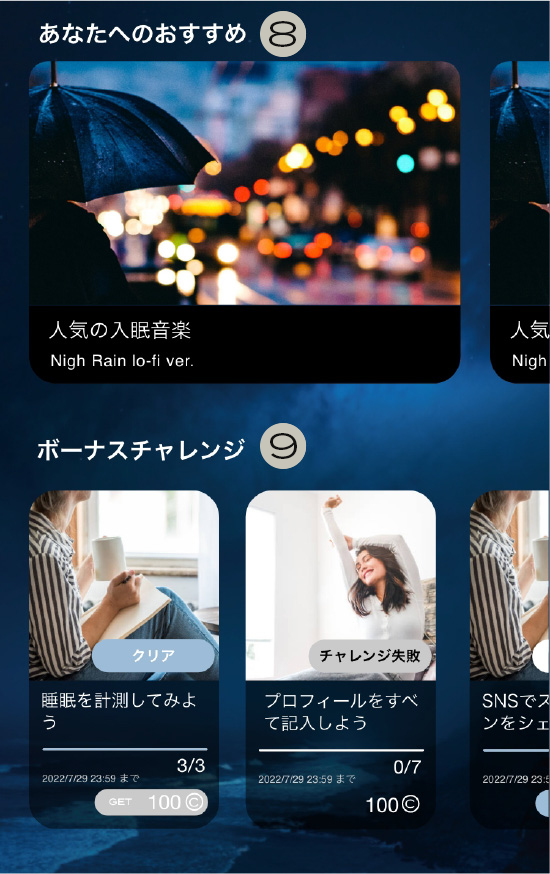
⑧ Provides recommended information for you.
⑨ You can earn Sleep Coins by taking on challenges.
Click here for how to use Sleep Coins≫
⑨ You can earn Sleep Coins by taking on challenges.
Click here for how to use Sleep Coins≫

⑩ Displays discount coupons available for purchase with in-app coins.
⑪ You can check the ranking of popular sleep induction music.
⑪ You can check the ranking of popular sleep induction music.

⑫ You can check popular articles useful for sleep.
⑬ We introduce recommended content.
⑭ We offer daily missions where you can get coins.
⑮ Tap to go to the sleep tracking alarm screen.
⑯ Navigate to the Home, Results, Coupons, or My Karte pages.
⑬ We introduce recommended content.
⑭ We offer daily missions where you can get coins.
⑮ Tap to go to the sleep tracking alarm screen.
⑯ Navigate to the Home, Results, Coupons, or My Karte pages.
About Sleep Tracking
Alarm Setting Screen

Before starting tracking, an input screen will appear asking about your daytime condition and activities before going to bed. By entering this information, you can get sleep hints and keep a record of your activities.

① Set your wake-up time in the time hole.
If setting is difficult, tap the time to set it using a drum roll.
② Start tracking.
Please use while charging as battery will be consumed during tracking.
Automatic linking with the connected Sleep Coin device will start on the alarm settings screen.
Automatic linking may take a few seconds, so if you see a "Connecting" message, please try again in 2-3 seconds.
③ You can set sleep induction. Tap the song title under music selection to go to the song selection screen.
You can set the music playback time in 5-minute increments, up to a maximum of 30 minutes.
*Music will not play if the device volume is 0.
*Music will not play if no music is set.
If setting is difficult, tap the time to set it using a drum roll.
② Start tracking.
Please use while charging as battery will be consumed during tracking.
Automatic linking with the connected Sleep Coin device will start on the alarm settings screen.
Automatic linking may take a few seconds, so if you see a "Connecting" message, please try again in 2-3 seconds.
③ You can set sleep induction. Tap the song title under music selection to go to the song selection screen.
You can set the music playback time in 5-minute increments, up to a maximum of 30 minutes.
*Music will not play if the device volume is 0.
*Music will not play if no music is set.

④ You can set the wake-up alarm.
Tap the song title under music selection to go to the song selection screen.
Set the alarm operating time. Within the set time, the wake-up music will gently guide you to wake up during light sleep.
We recommend setting the time for 20 minutes or more to wake up at a more comfortable timing.
You can set the snooze time by turning snooze ON.
*You can turn off the wake-up music and use your own alarm, but in that case, you will need to stop tracking after waking up.
⑤ Turn ON snoring and ambient sound tracking.
If you have already linked, automatic linking will start after the alarm settings screen is displayed.
⑥ You can set the Sleep Coin device ON/OFF.
Turning on device linking will take you to the linking settings screen.
Tap the song title under music selection to go to the song selection screen.
Set the alarm operating time. Within the set time, the wake-up music will gently guide you to wake up during light sleep.
We recommend setting the time for 20 minutes or more to wake up at a more comfortable timing.
You can set the snooze time by turning snooze ON.
*You can turn off the wake-up music and use your own alarm, but in that case, you will need to stop tracking after waking up.
⑤ Turn ON snoring and ambient sound tracking.
If you have already linked, automatic linking will start after the alarm settings screen is displayed.
⑥ You can set the Sleep Coin device ON/OFF.
Turning on device linking will take you to the linking settings screen.
Music Setting Screen

You can set sleep music and wake-up music respectively.
Tap the play button to go to the music preview screen.
The checkbox indicates the currently selected music.
You can select music by tapping to download it.
Tap the play button to go to the music preview screen.
The checkbox indicates the currently selected music.
You can select music by tapping
to download it.
During Tracking Screen

① The selected sleep music is displayed.
The wake-up music will play at the shallowest sleep timing within the set time.
② The current temperature inside the bed (under the covers) is displayed.
③ Swipe to end tracking.
If snooze is turned on, tapping the screen will stop the wake-up music, and the wake-up music will play at the set time interval until you swipe to stop tracking.
Please do not close or exit the screen until the tracking results are reflected.
Results may not be reflected correctly.
The wake-up music will play at the shallowest sleep timing within the set time.
② The current temperature inside the bed (under the covers) is displayed.
③ Swipe to end tracking.
If snooze is turned on, tapping the screen will stop the wake-up music, and the wake-up music will play at the set time interval until you swipe to stop tracking.
Please do not close or exit the screen until the tracking results are reflected.
Results may not be reflected correctly.
Checking Tracking Results
Tracking Results Screen

① Tap the date to display the calendar.
A mark will appear below the date on days when tracking was performed.
Tap to navigate to the data for the specified date.
Additionally, tapping the year/month in the calendar will display a calendar view, which can be useful when you want to check past data.
A blue mark indicates the selected date, and a white border indicates the current date.
A mark will appear below the date on days when tracking was performed.
Tap to navigate to the data for the specified date.
Additionally, tapping the year/month in the calendar will display a calendar view, which can be useful when you want to check past data.
A blue mark indicates the selected date, and a white border indicates the current date.

② The results of a multi-faceted evaluation of sleep duration and sleep rhythm are displayed as a sleep score.

③ Sleep efficiency is the ratio of sleep time to time spent in bed (tracking time).
The "Golden 90 Minutes" refers to the deep sleep during the first 90 minutes of sleep. The medal changes depending on the proportion of deep sleep in the golden 90 minutes.
Tap > to go to a more detailed page.
The "Golden 90 Minutes" refers to the deep sleep during the first 90 minutes of sleep. The medal changes depending on the proportion of deep sleep in the golden 90 minutes.
Tap > to go to a more detailed page.

④ Sleep advice tailored to you will be displayed based on the sleep results for that day.

⑤ By recording your daily sleep in the sleep diary, you can see statistics when you record it daily.
⑥ Also, based on your actions before bed, it offers tips to improve your sleep quality.
⑥ Also, based on your actions before bed, it offers tips to improve your sleep quality.

⑦ Displays the status of snoring and ambient sounds. The volume and frequency are calculated based on 10-second intervals as one count. Tap > to move to a more detailed page.
⑧ This function determines your breathing status during sleep. It categorizes your breathing status during sleep into 4 stages. The stage changes depending on the number of times a condition believed to be apnea occurs. Refer to the breathing status determination to achieve healthier sleep.
*This is not a definitive diagnosis of any condition.
Important: The Brain Sleep Coin is not a medical device and is not intended to replace consultation with a physician for the diagnosis, treatment, or monitoring of sleep apnea.
⑨ By linking with the Sleep Coin device, you can check your tossing and turning and sleeping posture. Tap > to move to a more detailed page.
⑧ This function determines your breathing status during sleep. It categorizes your breathing status during sleep into 4 stages. The stage changes depending on the number of times a condition believed to be apnea occurs. Refer to the breathing status determination to achieve healthier sleep.
*This is not a definitive diagnosis of any condition.
Important: The Brain Sleep Coin is not a medical device and is not intended to replace consultation with a physician for the diagnosis, treatment, or monitoring of sleep apnea.
⑨ By linking with the Sleep Coin device, you can check your tossing and turning and sleeping posture. Tap > to move to a more detailed page.
Detailed Measurement Results Screen

① You can check the status hourly by tapping the meter.

② Measures the number of times you fall back asleep (number of times snooze is used) and the time it takes to wake up.
Displays the number of times you woke up in the middle of the night and the duration of those awakenings.
・Sleep onset refers to the time it took from the start of measurement until you fell asleep. The faster you fall asleep, the higher your score. If you fall asleep too quickly, it indicates a high possibility of sleep deprivation, and your score will decrease.
・The number of times of mid-sleep awakenings refers to the state where the brain is awake. It determines the time when the brain is judged to be awake, regardless of consciousness or unconsciousness.
・Wake-up rhythm refers to the quality of sleep 90 minutes before waking up. The less deep sleep you have, the better your wake-up rhythm.
・Time taken to wake up refers to the time from when the alarm started until the measurement ended.
③ You can check the temperature inside the bed by linking with the Sleep Coin device.
You can check your sleep status at the highest temperature and lowest temperature. Tapping "Overlay with sleep stage" allows you to check the temperature and depth of sleep.
Displays the number of times you woke up in the middle of the night and the duration of those awakenings.
・Sleep onset refers to the time it took from the start of measurement until you fell asleep. The faster you fall asleep, the higher your score. If you fall asleep too quickly, it indicates a high possibility of sleep deprivation, and your score will decrease.
・The number of times of mid-sleep awakenings refers to the state where the brain is awake. It determines the time when the brain is judged to be awake, regardless of consciousness or unconsciousness.
・Wake-up rhythm refers to the quality of sleep 90 minutes before waking up. The less deep sleep you have, the better your wake-up rhythm.
・Time taken to wake up refers to the time from when the alarm started until the measurement ended.
③ You can check the temperature inside the bed by linking with the Sleep Coin device.
You can check your sleep status at the highest temperature and lowest temperature. Tapping "Overlay with sleep stage" allows you to check the temperature and depth of sleep.

④ You can record your daily sleep diary.
By recording, you can receive sleep tips tailored to your actions and review past actions and conditions.
*The daytime condition is registered as the result of the day before the measurement end date, so that you can check the condition results for that day's sleep.
By recording, you can receive sleep tips tailored to your actions and review past actions and conditions.
*The daytime condition is registered as the result of the day before the measurement end date, so that you can check the condition results for that day's sleep.

⑤ You can check the volume of ambient sounds and snoring.
⑥ The number of times and duration of snoring are displayed.
⑦ You can listen to snoring sounds. Tap V to listen to up to 10 sounds per day. Sounds can be checked in descending order of volume.
⑧ You can listen to ambient sounds. Tap V to listen to up to 10 sounds per day.
▼About saving snoring and ambient sounds
・For iOS: Recordings of 10 snoring and 10 ambient sounds, in descending order of volume, are saved in the standard "Files" app.
・For Android: Recordings of 10 snoring and 10 ambient sounds, in descending order of volume, are saved. You can download the audio to your smartphone with.
⑥ The number of times and duration of snoring are displayed.
⑦ You can listen to snoring sounds. Tap V to listen to up to 10 sounds per day. Sounds can be checked in descending order of volume.
⑧ You can listen to ambient sounds. Tap V to listen to up to 10 sounds per day.
▼About saving snoring and ambient sounds
・For iOS: Recordings of 10 snoring and 10 ambient sounds, in descending order of volume, are saved in the standard "Files" app.
・For Android: Recordings of 10 snoring and 10 ambient sounds, in descending order of volume, are saved. You can download the audio to your smartphone with
.

⑨ You can check information about tossing and turning and sleeping posture.
⑩ You can check your sleeping posture hour by hour by tapping the meter.
⑪ You can check postures that lead to deep sleep and postures that lead to more snoring.
⑩ You can check your sleeping posture hour by hour by tapping the meter.
⑪ You can check postures that lead to deep sleep and postures that lead to more snoring.
Statistics Screen

① You can check the statistics by tapping "Week," "Month," or "Year" at the top. If there are unmeasured days, those days are not included when calculating the average.
② The radar chart displays average data for the week, month, and year. The closer the overall radar is to the outer frame, the higher the score, indicating a good condition.
・Golden 90 minutes refers to the deep sleep during the first 90 minutes of sleep. A higher percentage of deep sleep indicates a better state.
・The number of times of mid-sleep awakenings refers to the state where the brain is awake. Fewer times and shorter duration are better.
・Sleep onset refers to the time it took from the start of measurement until you fell asleep. The faster you fall asleep, the higher your score.
・Wake-up rhythm evaluates how easily you wake up. A shorter duration of deep sleep indicates a better wake-up rhythm.
② The radar chart displays average data for the week, month, and year. The closer the overall radar is to the outer frame, the higher the score, indicating a good condition.
・Golden 90 minutes refers to the deep sleep during the first 90 minutes of sleep. A higher percentage of deep sleep indicates a better state.
・The number of times of mid-sleep awakenings refers to the state where the brain is awake. Fewer times and shorter duration are better.
・Sleep onset refers to the time it took from the start of measurement until you fell asleep. The faster you fall asleep, the higher your score.
・Wake-up rhythm evaluates how easily you wake up. A shorter duration of deep sleep indicates a better wake-up rhythm.


③ We offer suggestions to improve your daytime condition.
We analyze the bedtime, sleep duration, and actions from the day before the day you selected "very good" or "good" for your daytime condition, and suggest the best bedtime, sleep duration, and actions for you.
*This will not be displayed if there is no "very good" or "good" selected for daytime condition, or if nothing is entered.
We analyze the bedtime, sleep duration, and actions from the day before the day you selected "very good" or "good" for your daytime condition, and suggest the best bedtime, sleep duration, and actions for you.
*This will not be displayed if there is no "very good" or "good" selected for daytime condition, or if nothing is entered.
How to Use AI Sleep Consultation
AI Sleep Consultation Screen

① Tap the central AI Sleep Consultation to open the chat page.

② You can consult about your sleep concerns as many times as you like, anytime, anywhere. Please ask your questions freely in text.
How to Use Sleep Coin
How to Earn Sleep Coins

① You can get coins based on your daily sleep score. If your sleep score is 75, you can get 75 coins.

② You can get coins for completed missions by tapping "Mission" on the HOME screen.
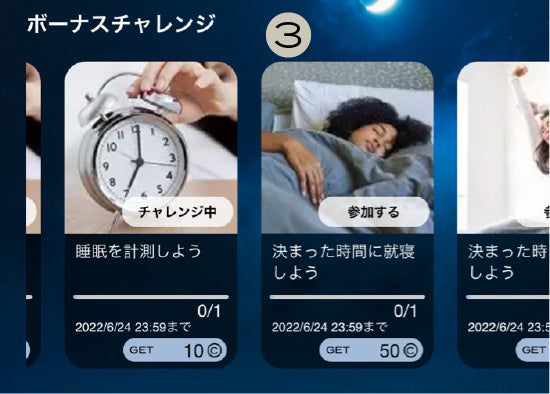
③ You can get coins by participating in and completing bonus challenges.
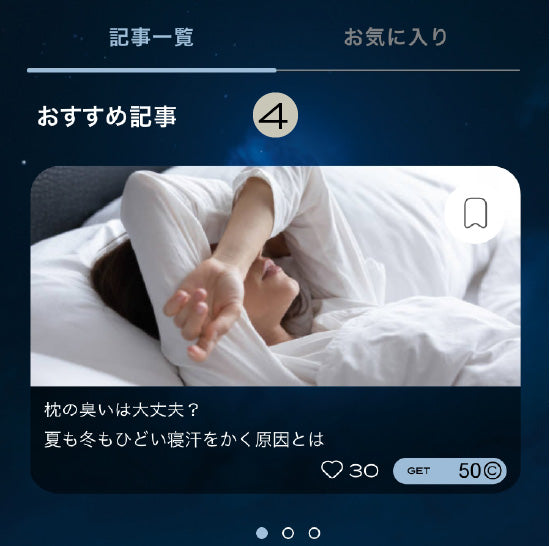
④ You can get coins by reading articles.
How to Use Sleep Coins

① You can use coupons on the coupon page. Tap the item you are interested in.

② Tap a coupon to see its details. Exchange coins for the ones you like.

③ You can use purchased coupons in "My Coupons". For in-store use, please follow the instructions of the store staff.

④ You can also use coins to purchase and download music.
About My Medical Chart

① You can check your current rank and information until your next rank.
Your rank changes monthly based on the number of coins you earn. You can check rank details by tapping the ? mark. You can get benefits and rank-exclusive coupons depending on your rank. You can edit your personal information in "Edit Profile". If you are using corporate services or sleep deviation value, you can move from "Sleep Deviation Value >".
② You can set the details of the items you are using.
You can always check information about the bedding you are using.
③ You can check your Sleep Coin balance and coin history.
Your rank changes monthly based on the number of coins you earn. You can check rank details by tapping the ? mark. You can get benefits and rank-exclusive coupons depending on your rank. You can edit your personal information in "Edit Profile". If you are using corporate services or sleep deviation value, you can move from "Sleep Deviation Value >".
② You can set the details of the items you are using.
You can always check information about the bedding you are using.
③ You can check your Sleep Coin balance and coin history.

④ You can check your coupon purchase history.
⑤ Various settings are available:
・Notification settings: ON/OFF for push notifications
・Device settings: Settings for linking with the Sleep Coin device
・Member registration: If you don't have an account, you will be redirected to the account registration page.
・Invite friends: You can invite friends via LINE.
・Change password: Customers registered with an email address can change their password.
・Notifications: We will send you various notifications.
・Help (inquiry chat): You can ask the chatbot about unclear points.
・Support page: You can check how to use the app and products. Please also check the help page for inquiries.
・Tutorial: You can view the tutorial.
⑤ Various settings are available:
・Notification settings: ON/OFF for push notifications
・Device settings: Settings for linking with the Sleep Coin device
・Member registration: If you don't have an account, you will be redirected to the account registration page.
・Invite friends: You can invite friends via LINE.
・Change password: Customers registered with an email address can change their password.
・Notifications: We will send you various notifications.
・Help (inquiry chat): You can ask the chatbot about unclear points.
・Support page: You can check how to use the app and products. Please also check the help page for inquiries.
・Tutorial: You can view the tutorial.
About Articles
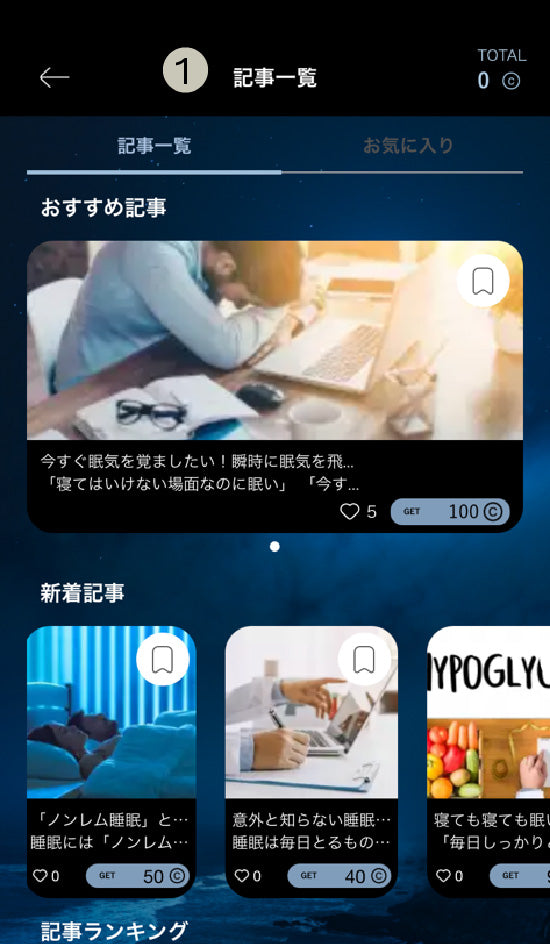
① You can navigate to the article page from the article list on the HOME screen.
You can check recommended articles, new arrivals, and popular articles.
You can check recommended articles, new arrivals, and popular articles.
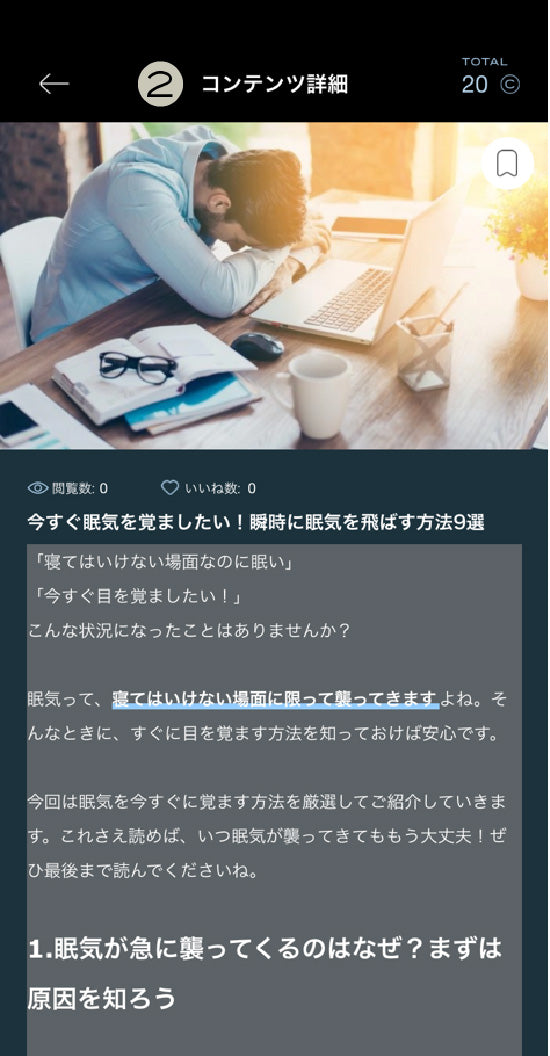
② You can view the article details by tapping on an article.
You can add it to your favorites by tapping .
.
You can add it to your favorites by tapping
.

③ Articles you have favorited will appear in your favorites list.
You can unfavorite an article by tapping again.
You can unfavorite an article by tapping
again.
How to Use Brain Sleep Coin

How to Attach and Detach

Clip it to the waistband of your pants so that it is below your navel.
When attaching, please make sure the logo is facing forward. Make sure the clip is securely fastened all the way in.
*It is not waterproof. Do not get it wet or put it in a washing machine.
When attaching, please make sure the logo is facing forward. Make sure the clip is securely fastened all the way in.
*It is not waterproof. Do not get it wet or put it in a washing machine.

The clip is designed to be firm so that it does not come off during sleep.
The tip is flared in a V-shape, so instead of spreading the clip and clamping it, hold the left and right sides of your pants' waistband with your fingers, place the V-shaped part against the waistband, and push it in for smooth attachment.
When detaching, instead of pulling the main body, pull the resin cap at the tip and the main body together for smooth removal. Please be careful not to force it open, as this may cause damage.
The tip is flared in a V-shape, so instead of spreading the clip and clamping it, hold the left and right sides of your pants' waistband with your fingers, place the V-shaped part against the waistband, and push it in for smooth attachment.
When detaching, instead of pulling the main body, pull the resin cap at the tip and the main body together for smooth removal. Please be careful not to force it open, as this may cause damage.
How to Link

① You can set up the connection from the device settings in My Chart.

You can also set up the connection by turning the measurement alarm ON/OFF.

② Sleep Coins nearby will be displayed.
If there are multiple, you can check which device it is connected to after connecting.
If there are multiple, you can check which device it is connected to after connecting.

③ When paired, the built-in lamp on the front of the unit will light up for 1 second.
(You can check this even when it is in the clip)
(You can check this even when it is in the clip)

④ Once connected, you can check the battery level and reconfirm the connection by lighting up the lamp again.
*Battery level is an estimate.
⑤ If you connect to the wrong Sleep Coin, disconnect and reconnect.
*Battery level is an estimate.
⑤ If you connect to the wrong Sleep Coin, disconnect and reconnect.
How to replace the battery

Remove the main unit from the clip.
*Since it is made to be a perfect fit, it may take some time to attach.
1. Turn the lid on the side where the coin battery is inserted (opposite the logo) counterclockwise. Once it stops rotating, remove the lid.
*Since it is made to be a perfect fit, it may take some time to attach.
1. Turn the lid on the side where the coin battery is inserted (opposite the logo) counterclockwise. Once it stops rotating, remove the lid.

2. Remove the coin battery inside.
3. Insert the CR2032 coin battery with the positive (+) side facing up.
4. Attach the lid to the unit and turn it clockwise until it fits into the designated position. There is an arrow mark on the back of the lid and on the rim of the main unit. Align the arrow marks, close the lid, and turn it.
3. Insert the CR2032 coin battery with the positive (+) side facing up.
4. Attach the lid to the unit and turn it clockwise until it fits into the designated position. There is an arrow mark on the back of the lid and on the rim of the main unit. Align the arrow marks, close the lid, and turn it.

*Do not force it to rotate. Once it stops rotating, the coin battery replacement is complete.
Replacing the battery with an incorrect type of coin battery can cause fire or electric shock.
5. Attach the clip and you can start measuring.
*Measurement will not be affected even if the logo is diagonal or upside down.
Replacing the battery with an incorrect type of coin battery can cause fire or electric shock.
5. Attach the clip and you can start measuring.
*Measurement will not be affected even if the logo is diagonal or upside down.
Product Details
| Size, Weight, Material | Diameter | 30.0mm |
|---|---|---|
| Thickness | 8.0mm | |
| Weight | Unit: 7g, Clip: 11g | |
| Material | Body: ABS resin, PC (polycarbonate) Clip: Silicone, Stainless steel |
|
| Bluetooth Connection | Linked with dedicated application | |
| Battery | CR2032 Coin Cell Battery | |
| Sensor | Accelerometer (3-axis) | |
| Supported OS | iOS 17 and later Android 14 and later *We cannot guarantee operation if the manufacturer's support for the smartphone terminal used with the app has ended. |
|
| Operating Environment | Temperature | +5℃ to +50℃ |
| Humidity | Less than 99% (non-condensing) | |
| Storage Environment | Temperature | −20℃ to +70℃ |
| Humidity | Less than 99% (non-condensing) | |
| Legal Information and Certification/Technical Conformity Mark |  |
|
| Included Items | Sleep Coin Unit Clip Instruction Manual |
|
Frequently Asked Questions
About the App
Is the app free?
It's free. There are no monthly fees either.
Are there communication charges?
No communication occurs during sleep measurement as it uses a Bluetooth connection. Communication does occur when downloading music, exchanging coupons, or viewing articles.
How much battery does it consume?
It consumes about 40-50% for one night's measurement. We recommend using it while charging.
What are the supported models?
You can use it with any model that supports the following OS:
iOS: 17 or later
Android: 14 or later
iOS: 17 or later
Android: 14 or later
How many times a day can I measure?
Once a day. If you perform a second measurement, the first data will be overwritten.
Does it also detect other people's snoring?
It cannot distinguish snoring, so it may detect other people's snoring. Placing your smartphone as close to you as possible improves accuracy.
Does it have a snooze function?
If you set an alarm in the app, you can set a snooze. If you use your smartphone's standard alarm, turn off the in-app alarm (you will need to manually stop the measurement when you wake up).
Does it link with the Health app?
It is not currently supported. It is planned to be supported in future updates.
About the Sleep Coin Device
Can I measure with just the Sleep Coin?
Concurrent use with the app is required. Measurement cannot be performed with the device alone.
Can two people use one Sleep Coin?
Yes, if used alternately. When switching users, disconnect from the app and reconnect with another app. Simultaneous use is not possible.
Can I view data for two people with one app?
No, as one Sleep Coin corresponds to one app.
Can I use it with a dress?
It is designed to be worn on the waist of trousers, so it is not compatible with dresses.
How do I replace the battery?
You can replace it manually without tools. The battery is a CR2032 (3V).
How long does the battery last?
Approximately 4 to 6 months.
*Note: The initial battery included is for testing purposes and may have individual differences in charge level.
*Note: The initial battery included is for testing purposes and may have individual differences in charge level.
Can I use it if my smartphone is in another room?
You can measure as long as it is within Bluetooth range. However, snoring cannot be measured.
Troubleshooting
Cannot connect to the coin unit
Please check the following:
1. Is Bluetooth ON?
2. Is location information ON? (Required for Android)
3. Are you connecting via the app? (Cannot connect from smartphone's Bluetooth settings)
If the issue persists, remove and reinsert the battery to restart. If the red light does not turn on, the battery needs to be replaced.
1. Is Bluetooth ON?
2. Is location information ON? (Required for Android)
3. Are you connecting via the app? (Cannot connect from smartphone's Bluetooth settings)
If the issue persists, remove and reinsert the battery to restart. If the red light does not turn on, the battery needs to be replaced.
The start button for measurement does not respond
Uninstall the app once and reinstall it.
After "Agree," the icon to proceed does not appear (Android)
If the device's font size is set too large, the button may be hidden by the status bar. Please adjust the font size.
I don't know how to update the app
I want to delete my account
We will delete your account at customer support. Please contact us via the inquiry form with the username registered in My Chart.
Who should I contact for inquiries?
Please contact us via the inquiry form.